
Supplement to Issue 3: Gamma.App
Tutorial on Creating Polished Presentations with AI
We are back after a short break but not with a full-fledged issue. This is a supplementary edition to a topic we had introduced in Issue 3, under the AI in Practice section.

Problem Statement
Build a presentation on a topic of interest and some expertise. The output needs to be well structured, visually appealing, and have clear takeaways at the end of it.
Live Use Case
1️⃣ Ask ChatGPT or Gemini for a Presentation Outline
Zero in on the topic, audience, and messages you want to land with your audience. This thinking needs to come from us, the presenters; AI tools are merely enablers, not brain-replacers.
Write the prompt out as clearly as possible with a list of topics you want covered.
Example prompt: “Help me create a presentation about the Indian payments industry in 2025. Look at how consumer behaviour has shifted historically, who are the key players in the ecosystem, what are some game changers that grew the payments industry (macro economy, regulatory, government, international players) etc. Also cover what the future of payments looks like in India. Think about consumers, small businesses, enterprises and how they transact both face to face and online. Also cover domestic and international payments.”
Feed your prompt to one of your apps of choice. We fed this prompt to Gemini.
2️⃣ Copy the Outline & Paste into Gamma.app
Create a login on Gamma.app - can be accessed as a mobile site as well as via the web.
‘Copy text’ from Gemini.
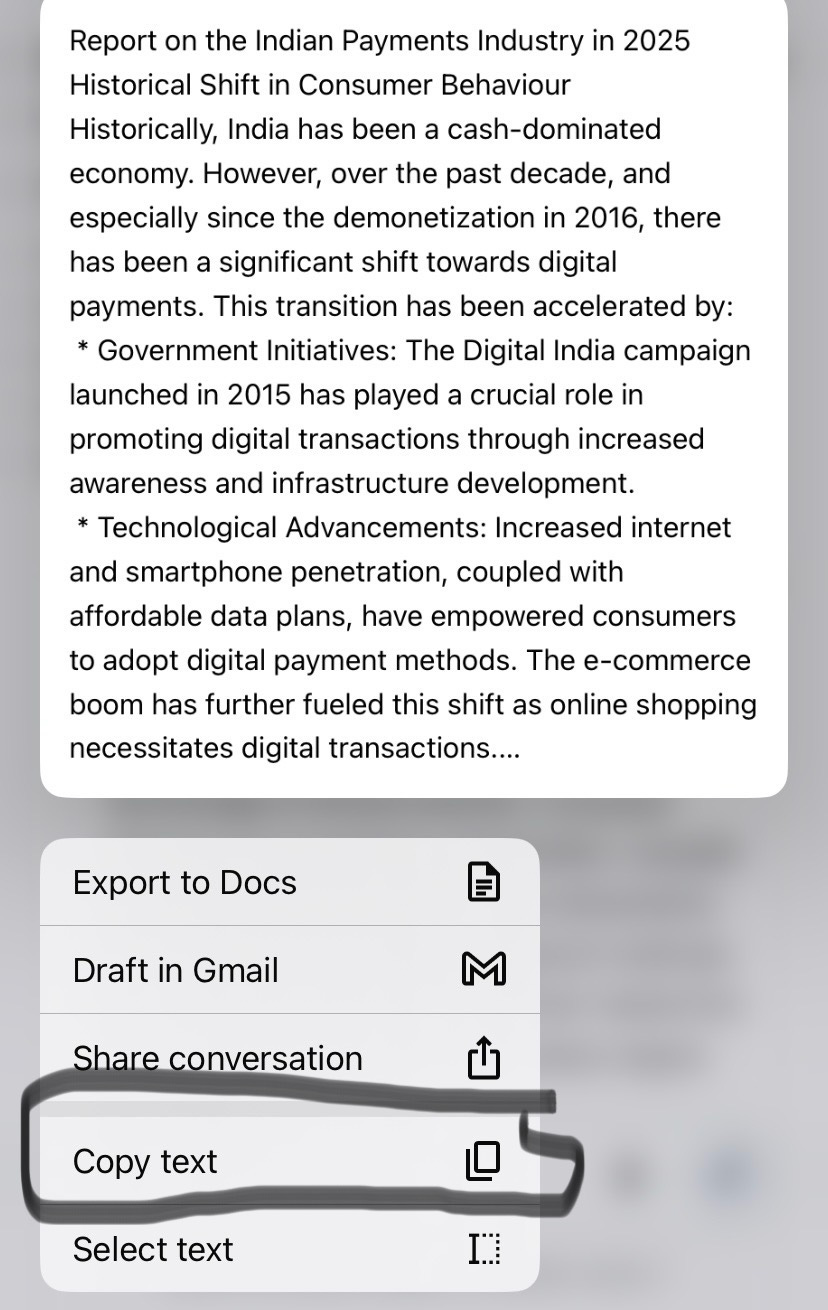
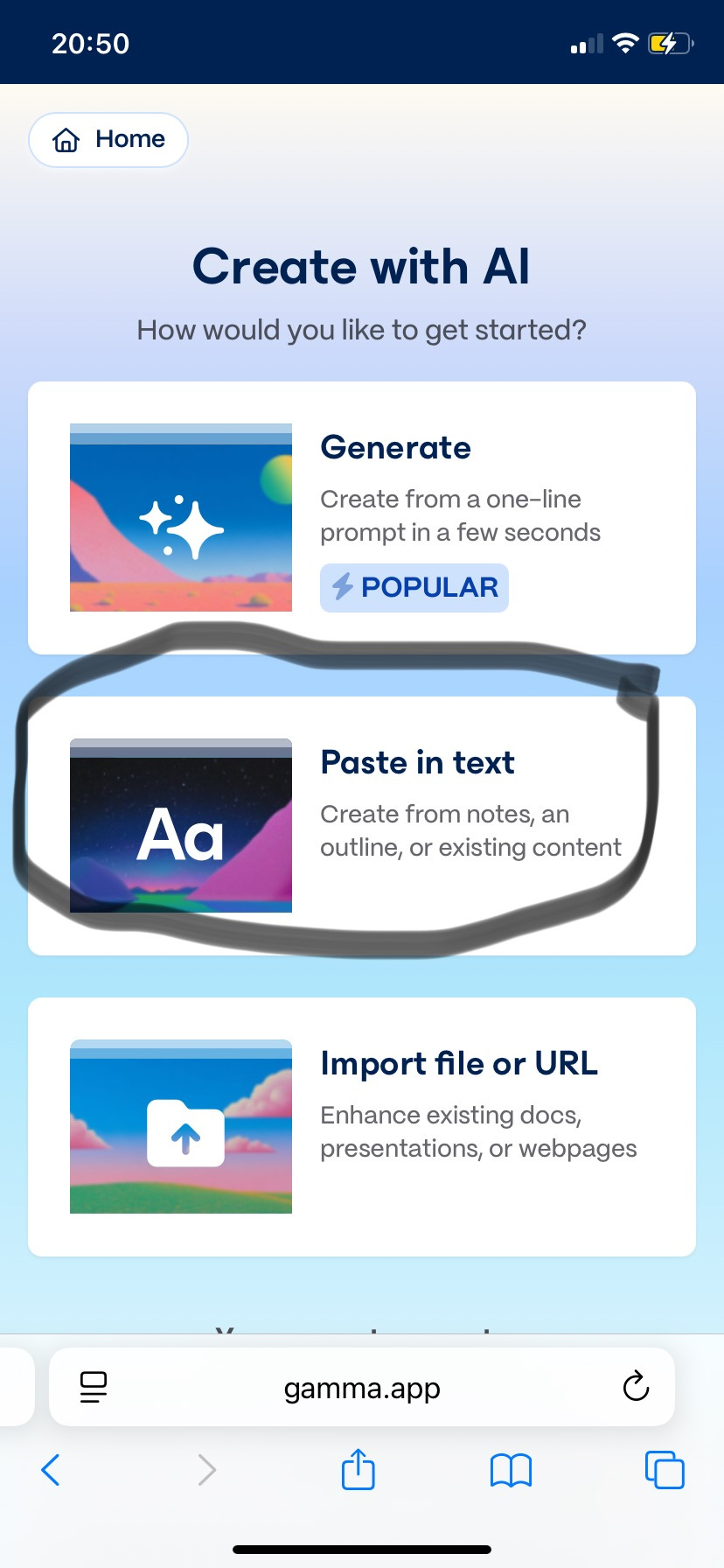
On Gamma.App, click ‘Create New’, ‘Paste in Text’. A notes editor will appear where you can paste the copied text of the output from Gemini. Click Continue.
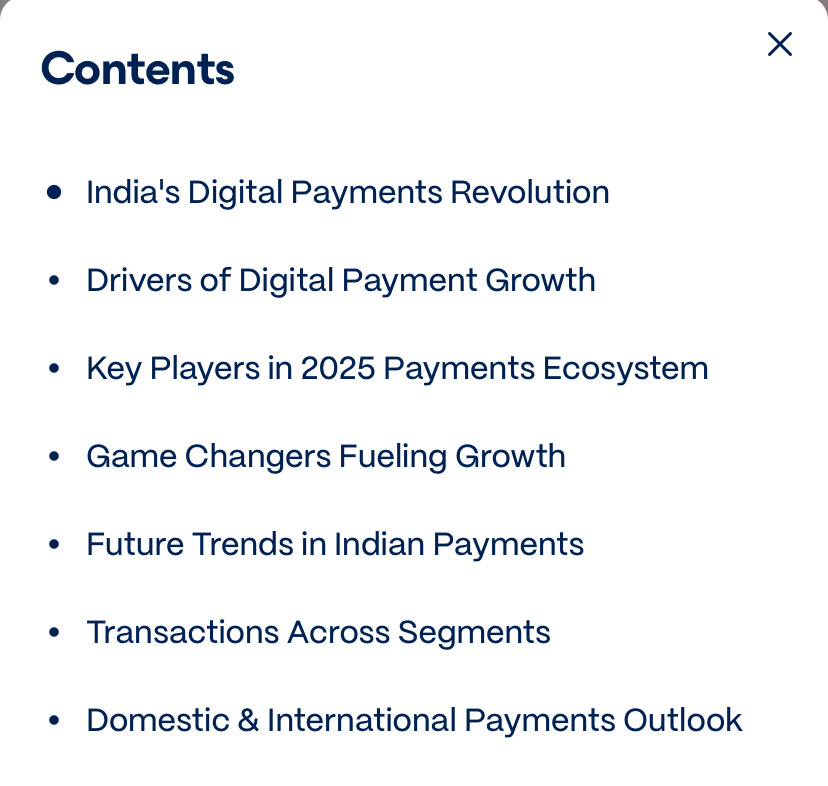
Choose how you want your presentation to be - number of slides, amount of text, type of images. Also give adequate line breaks between the various paragraphs that you want to show up as separate slides / cards. In our case, we divided the input text into 7 sections since we wanted a 7-slide output.
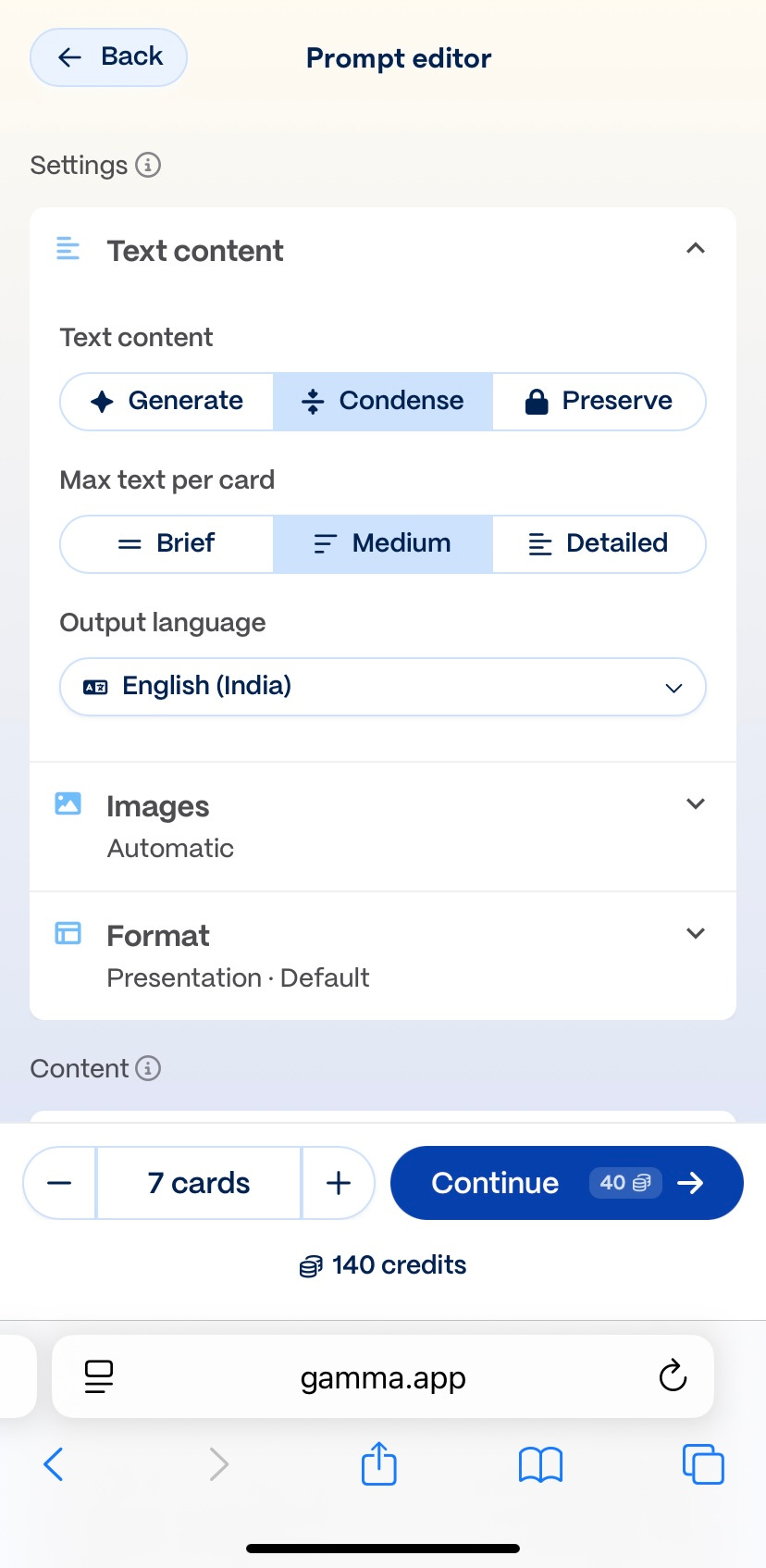
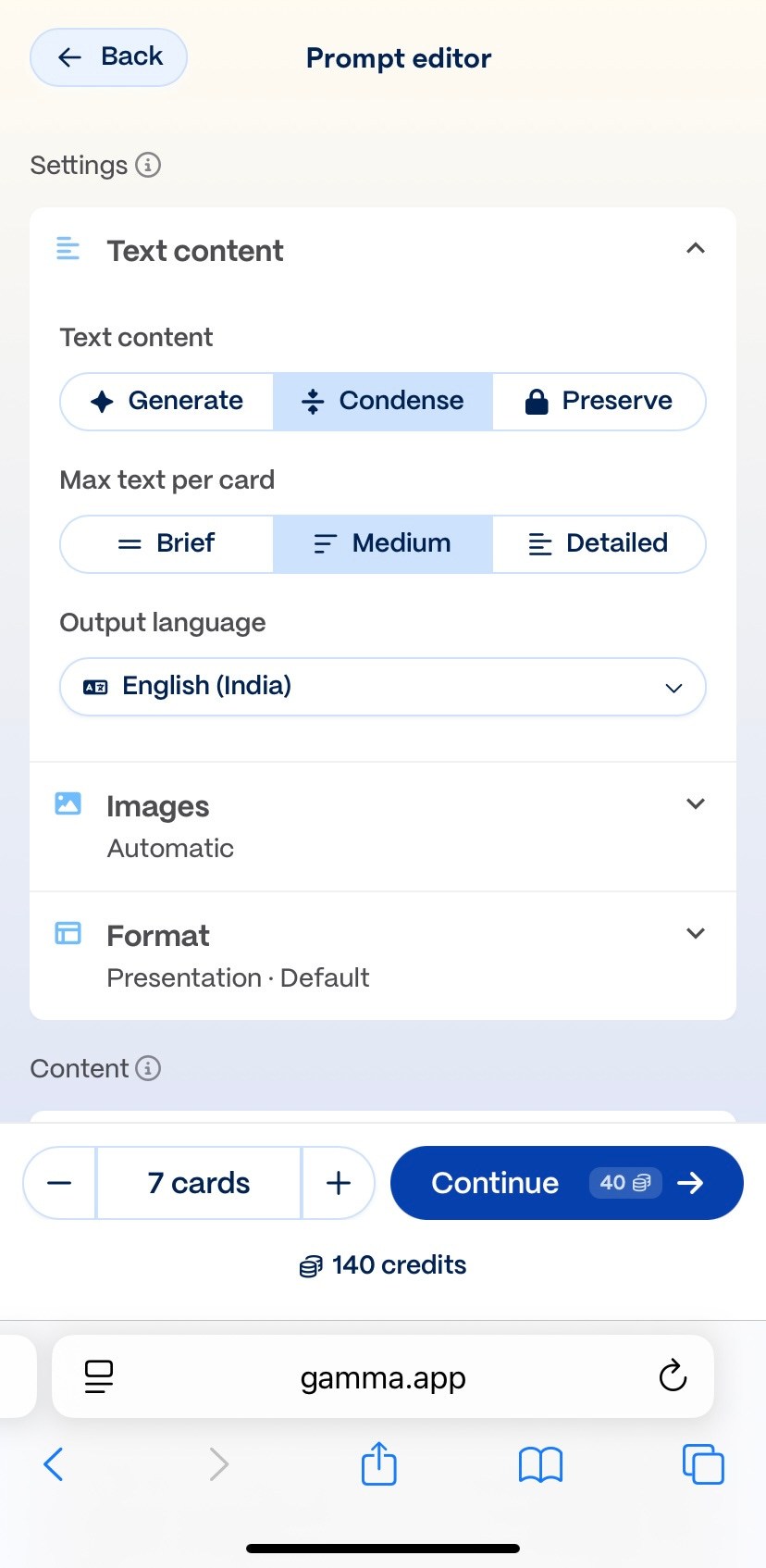
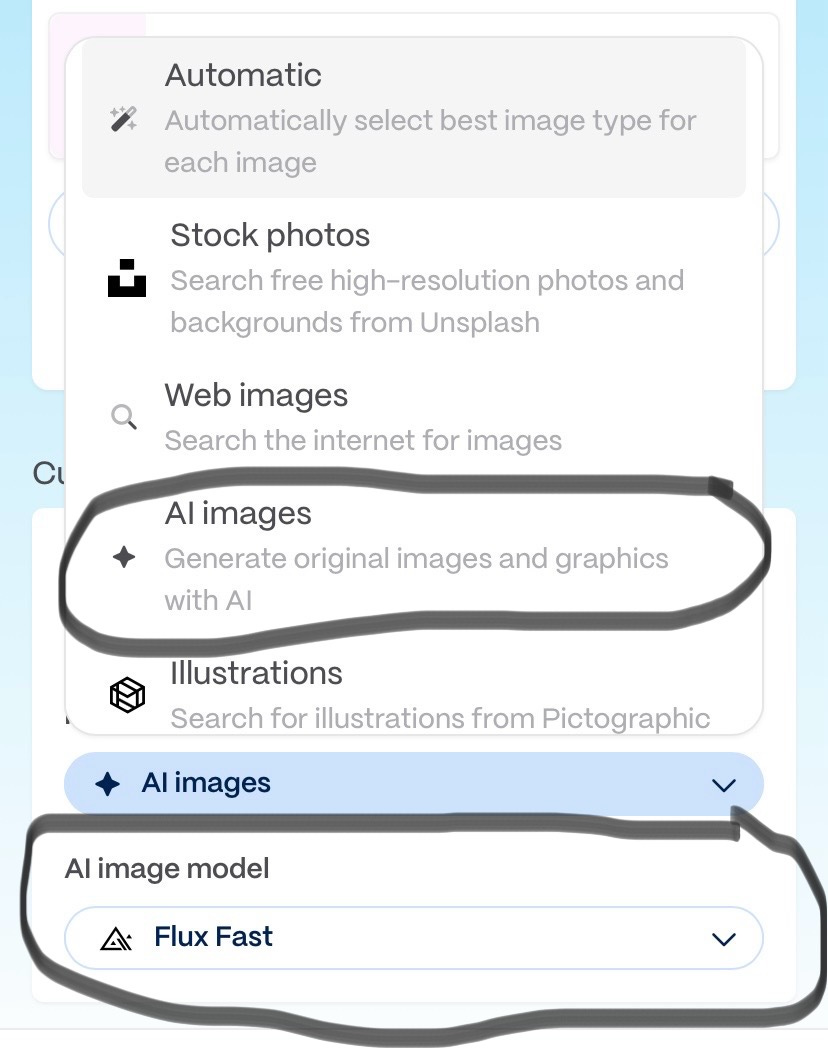
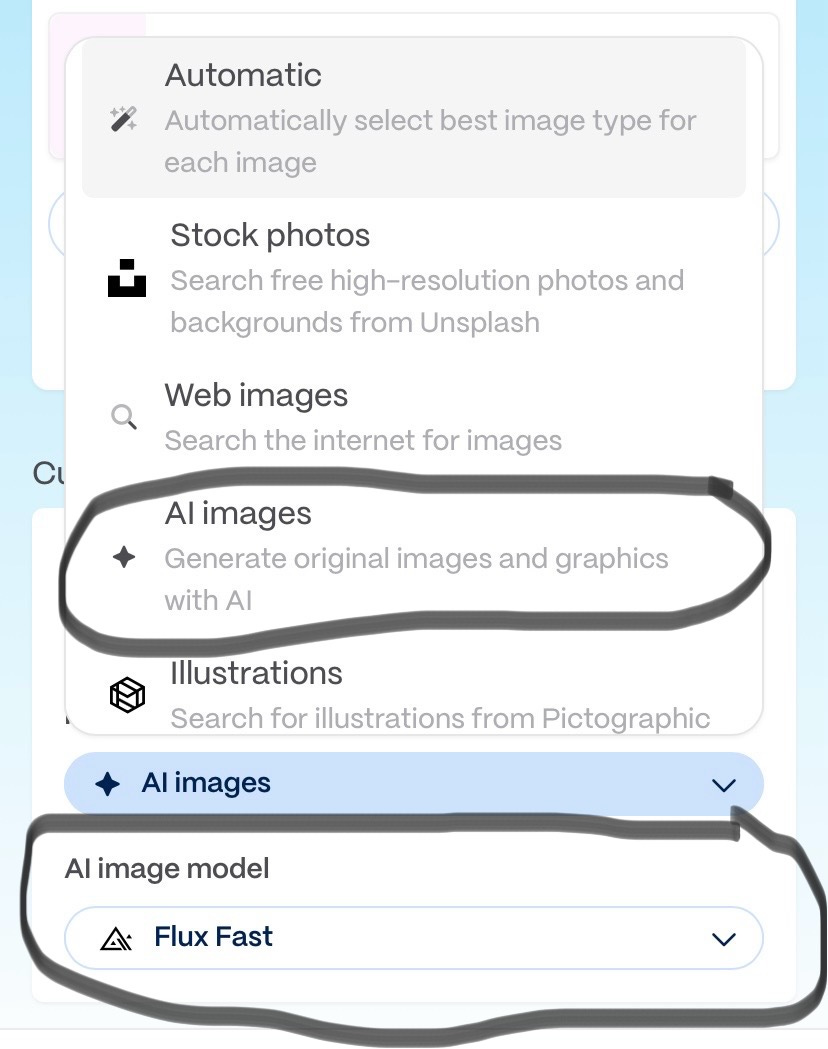
There are multiple ‘images’ options at this step — fully AI generated (leveraging an AI generation model), sourced from the web (this might include stock photos needing copyright permission), uploaded from a file by the creator or Automatic (a mix of AI and web sourced).
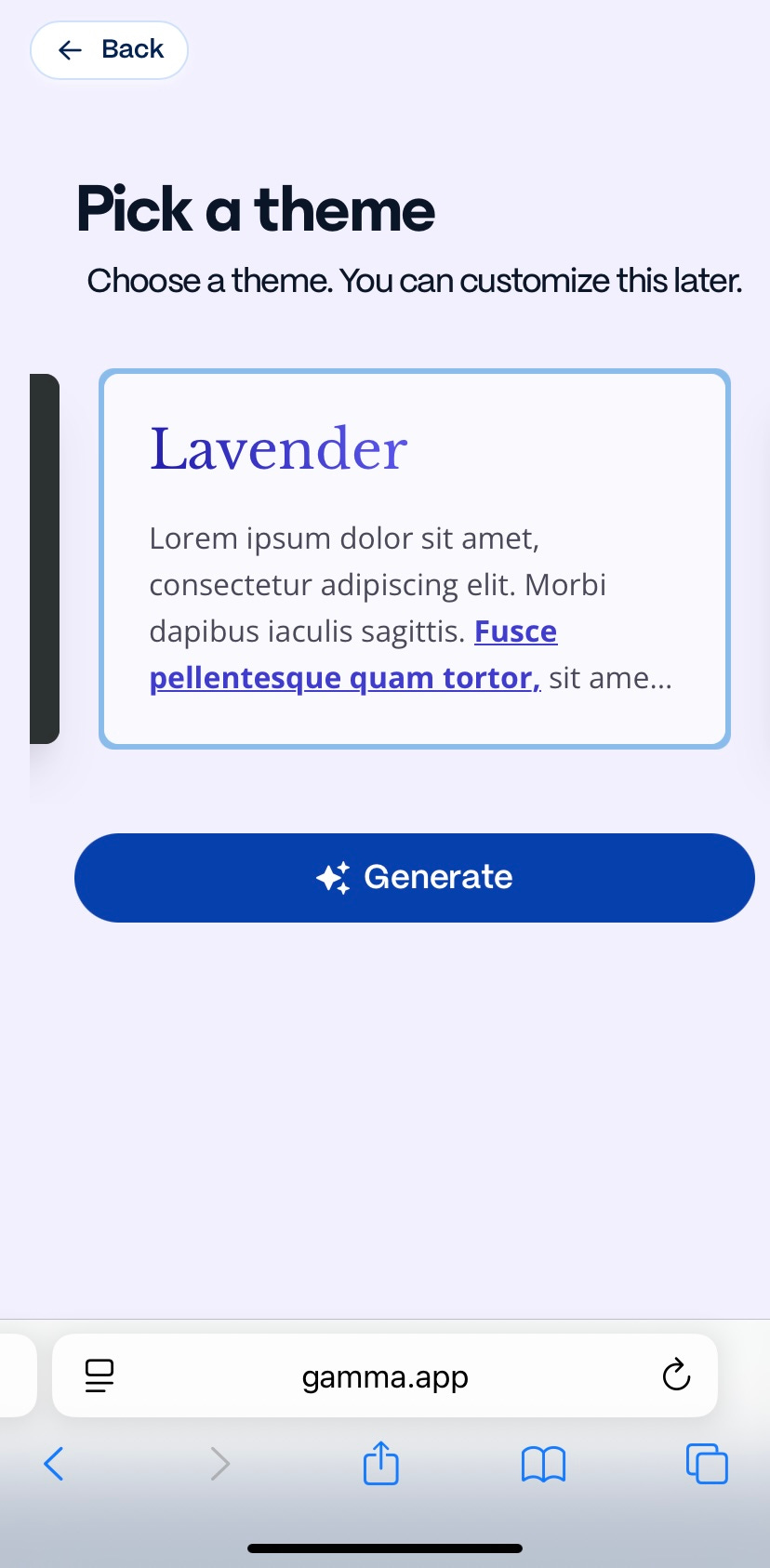
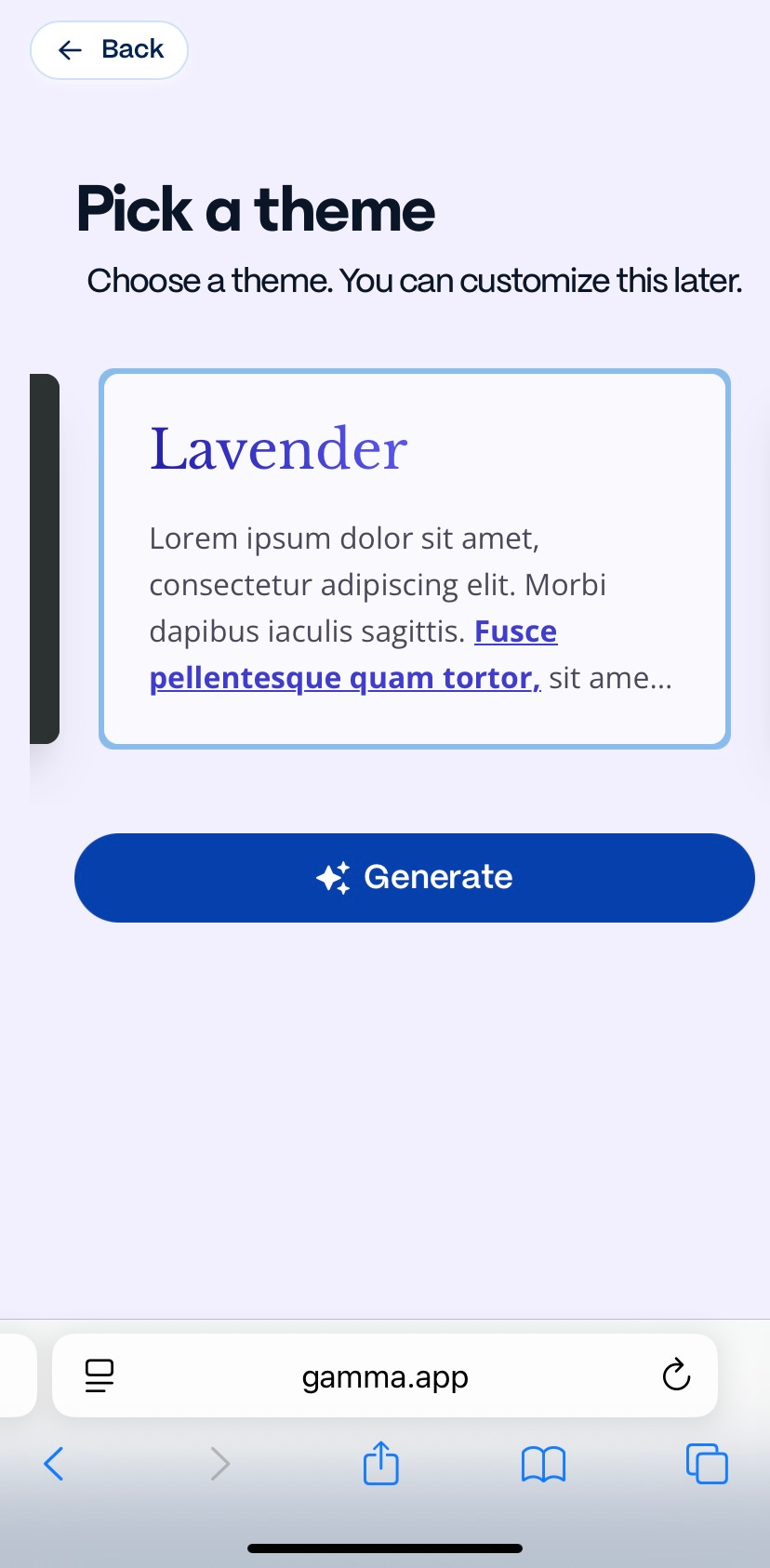
Next, choose a presentation style that will set the font type, colour, background etc. for the entire presentation and click “Generate”.
3️⃣ Let AI Generate the Slides
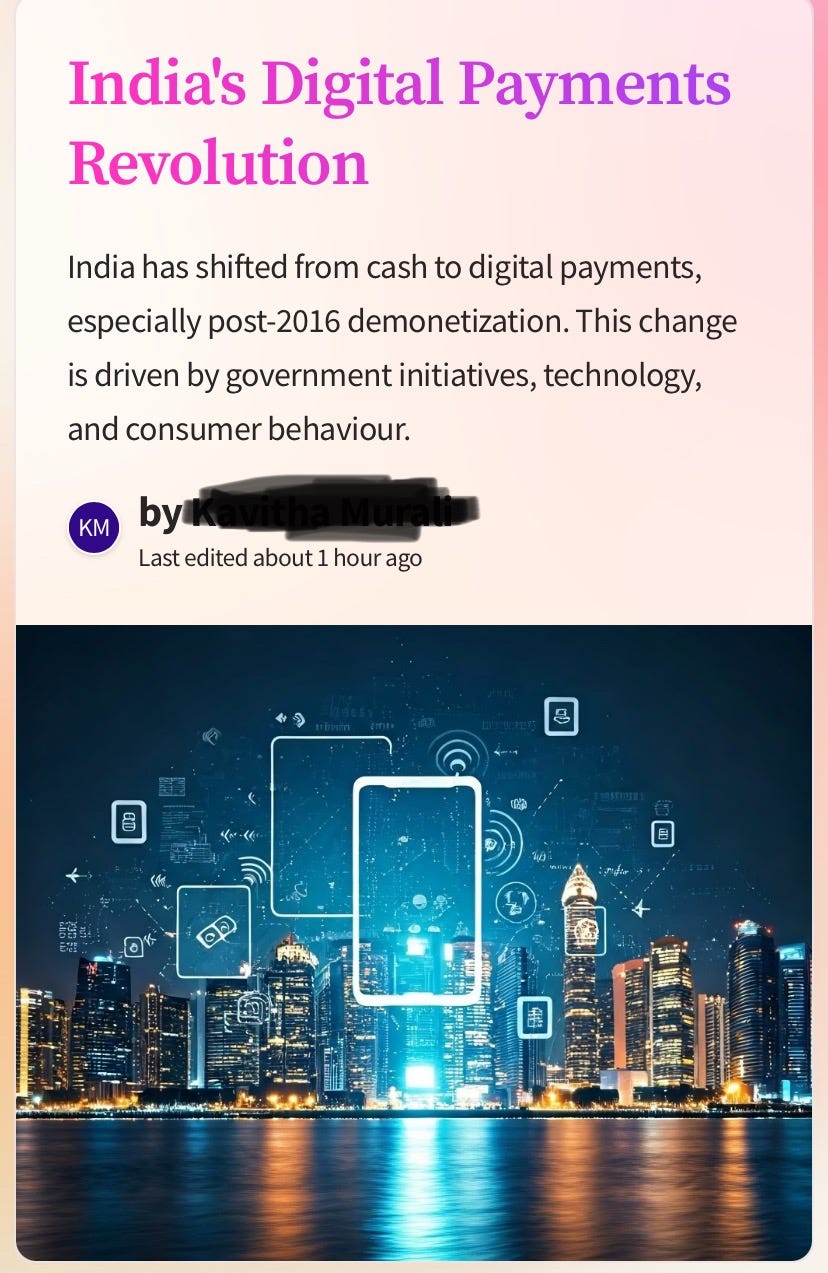
Voila! Our 7-slide presentation is ready. Well aligned and laid out, it can now be tweaked to meet our final needs.
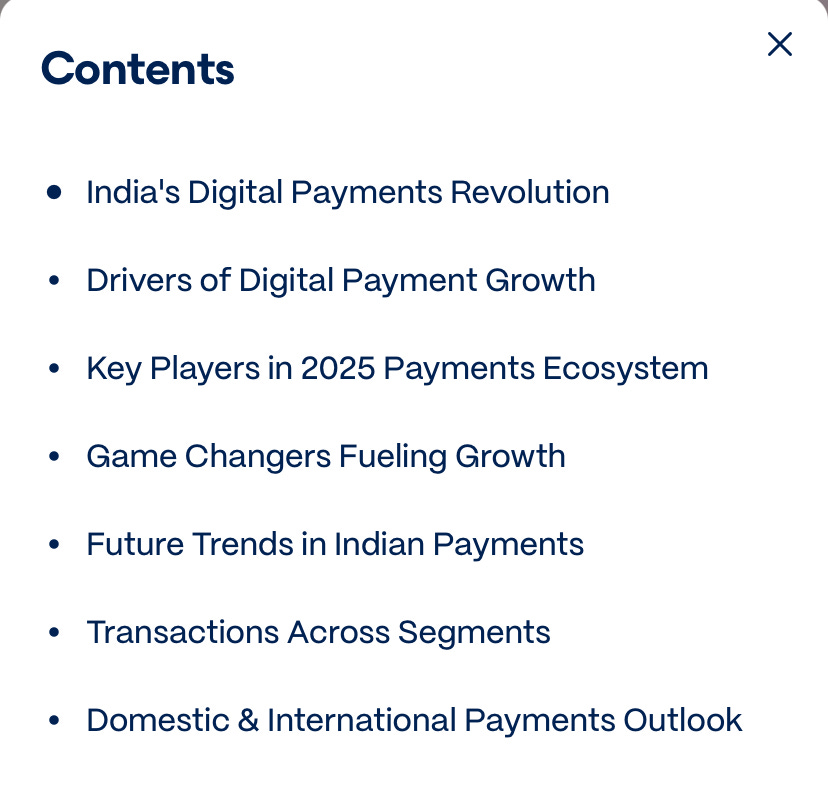
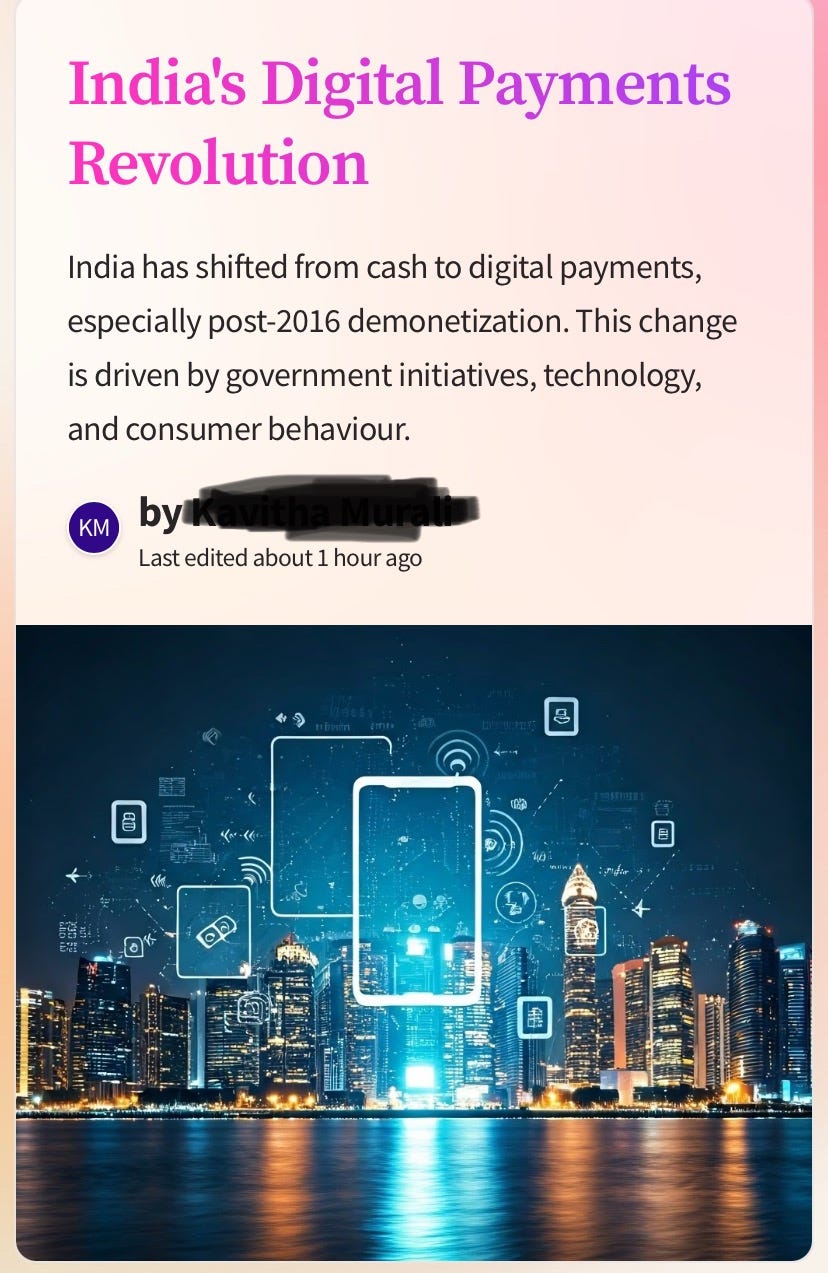
4️⃣ Customize & Finalize
All the content is displayed as widgets that can be easily moved around and edited, without the need to painstakingly realign those text boxes.
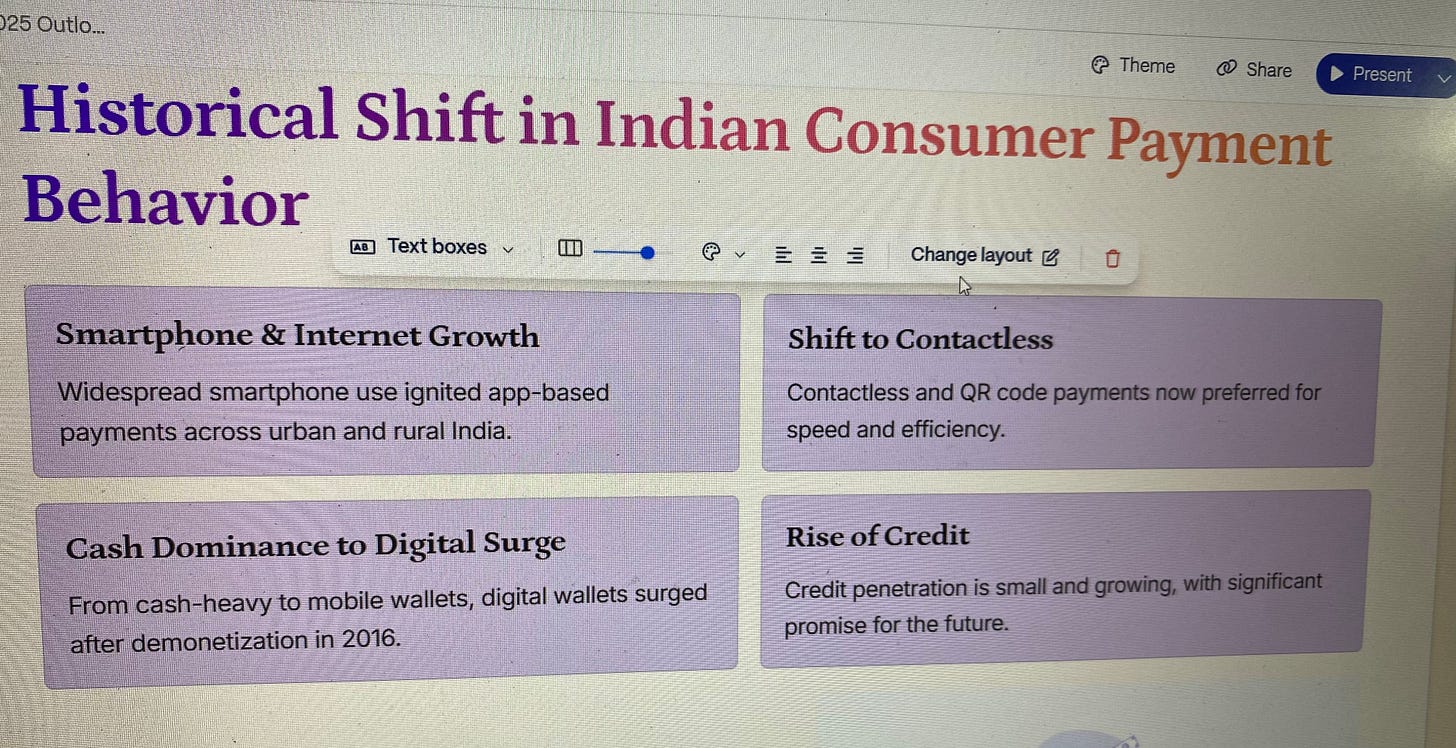
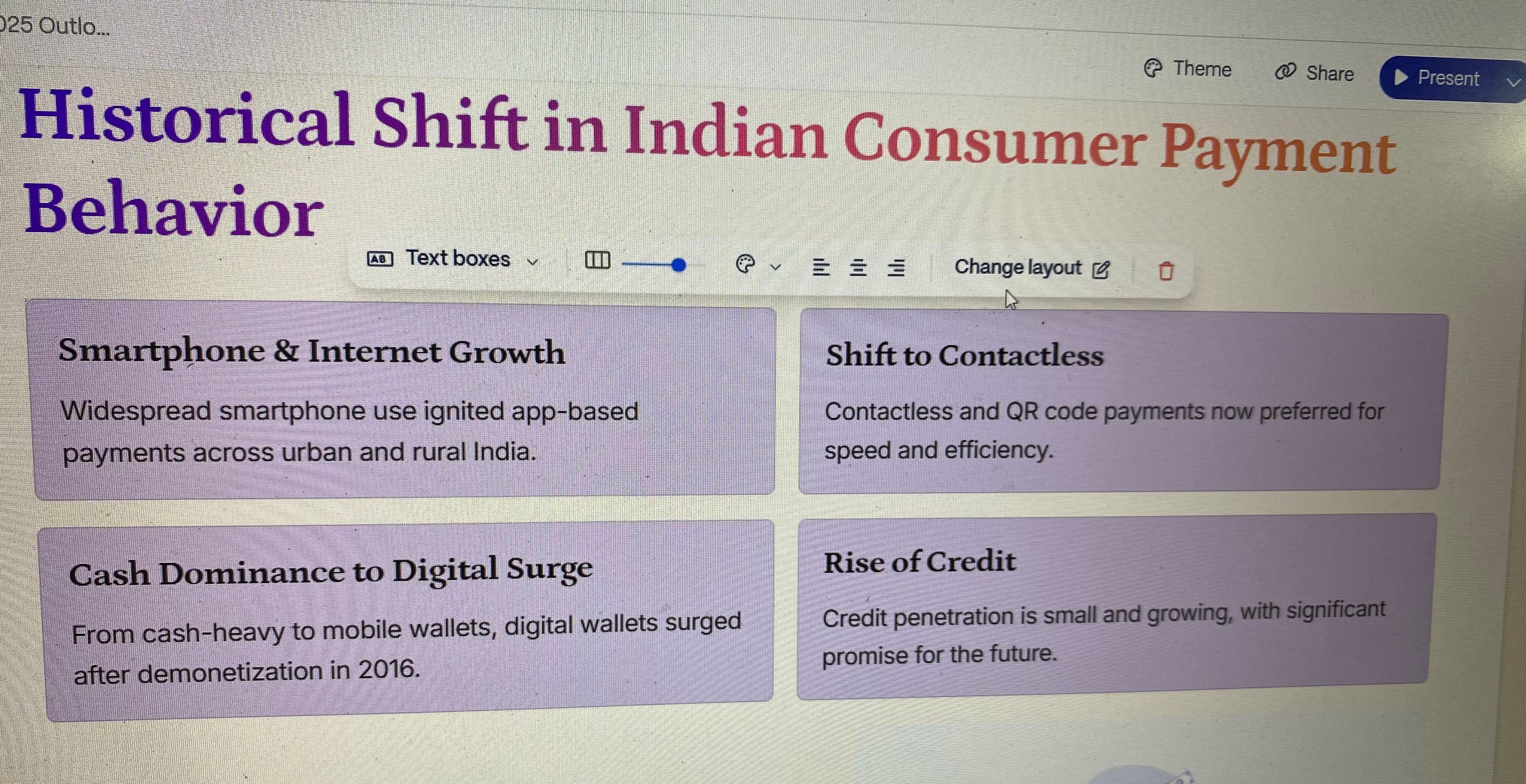
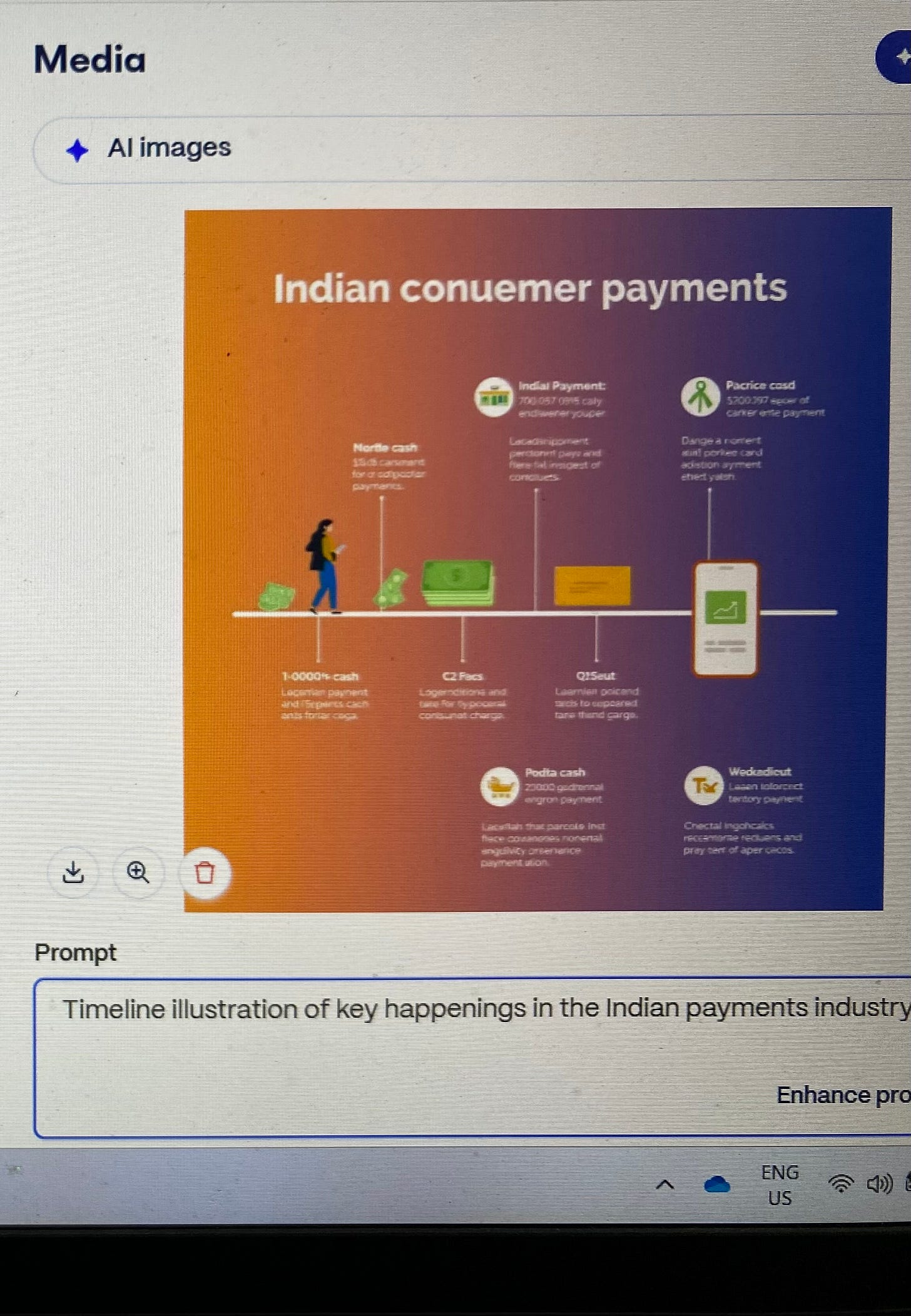
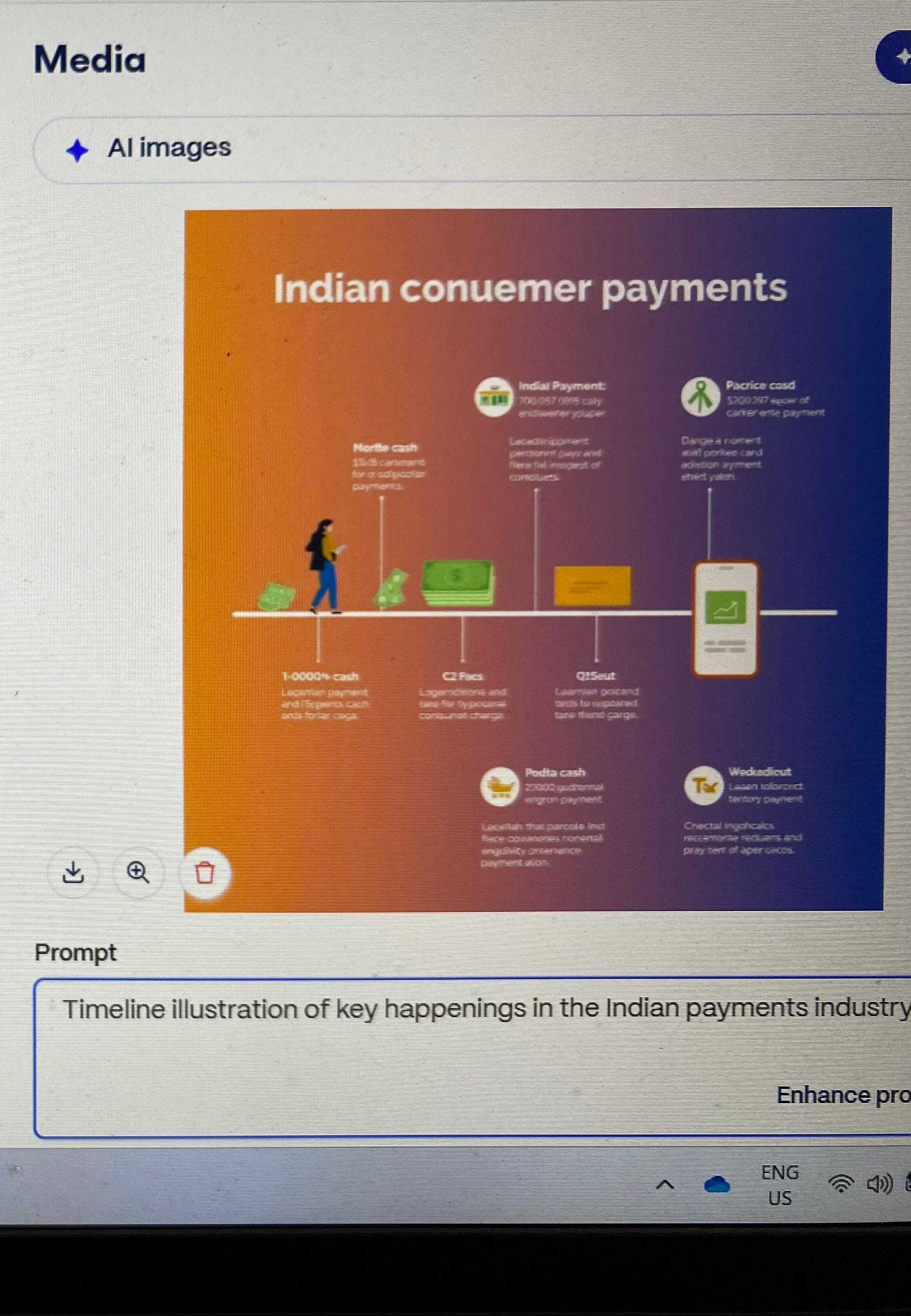
Check the images for correctness. AI tools end up with images that can have typos, incorrect representations etc. Employ “Ask AI”, the chatbot available in Gamma.App for minor corrections. And replace AI images with web images or vice versa as the context demands.
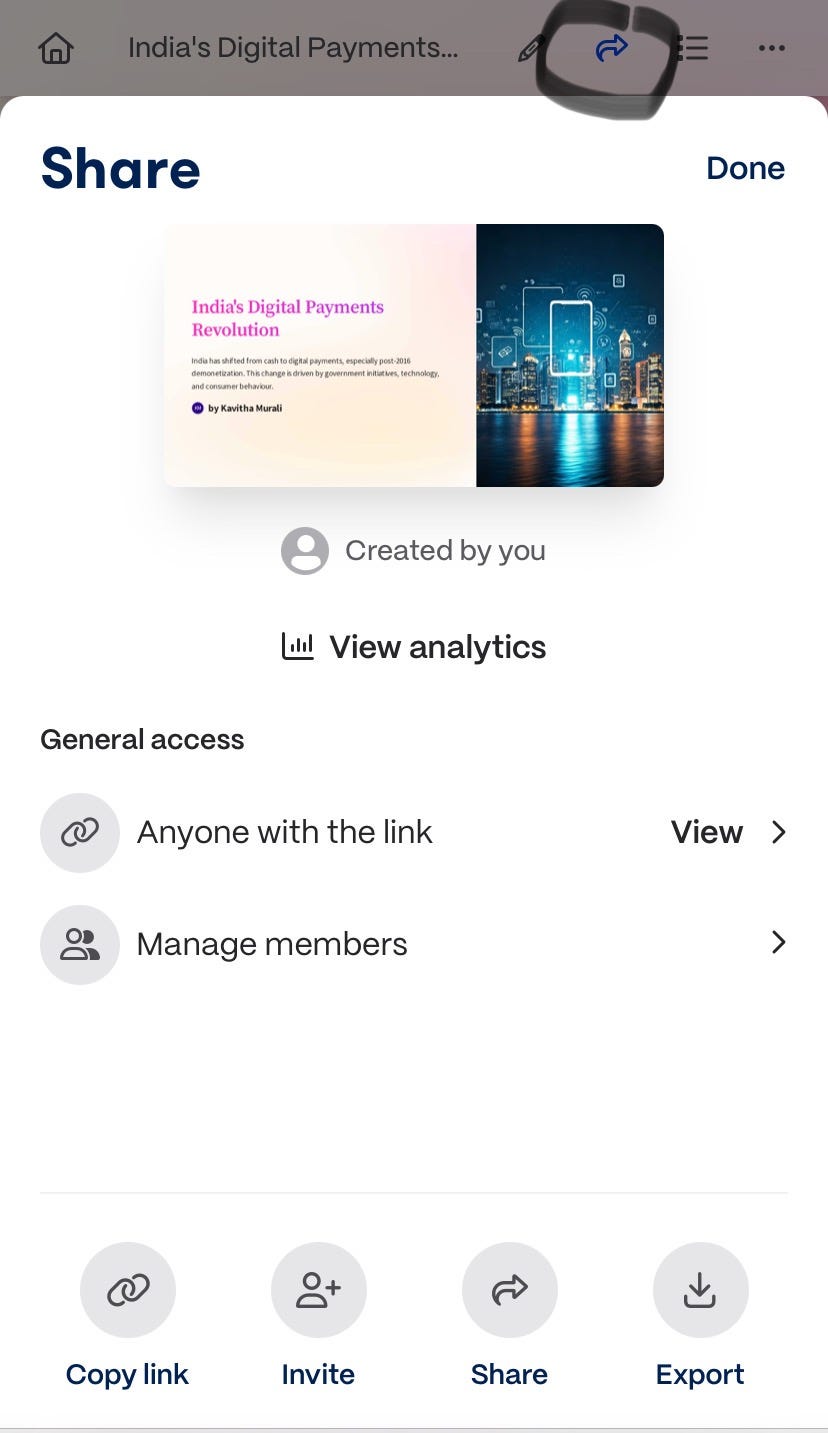
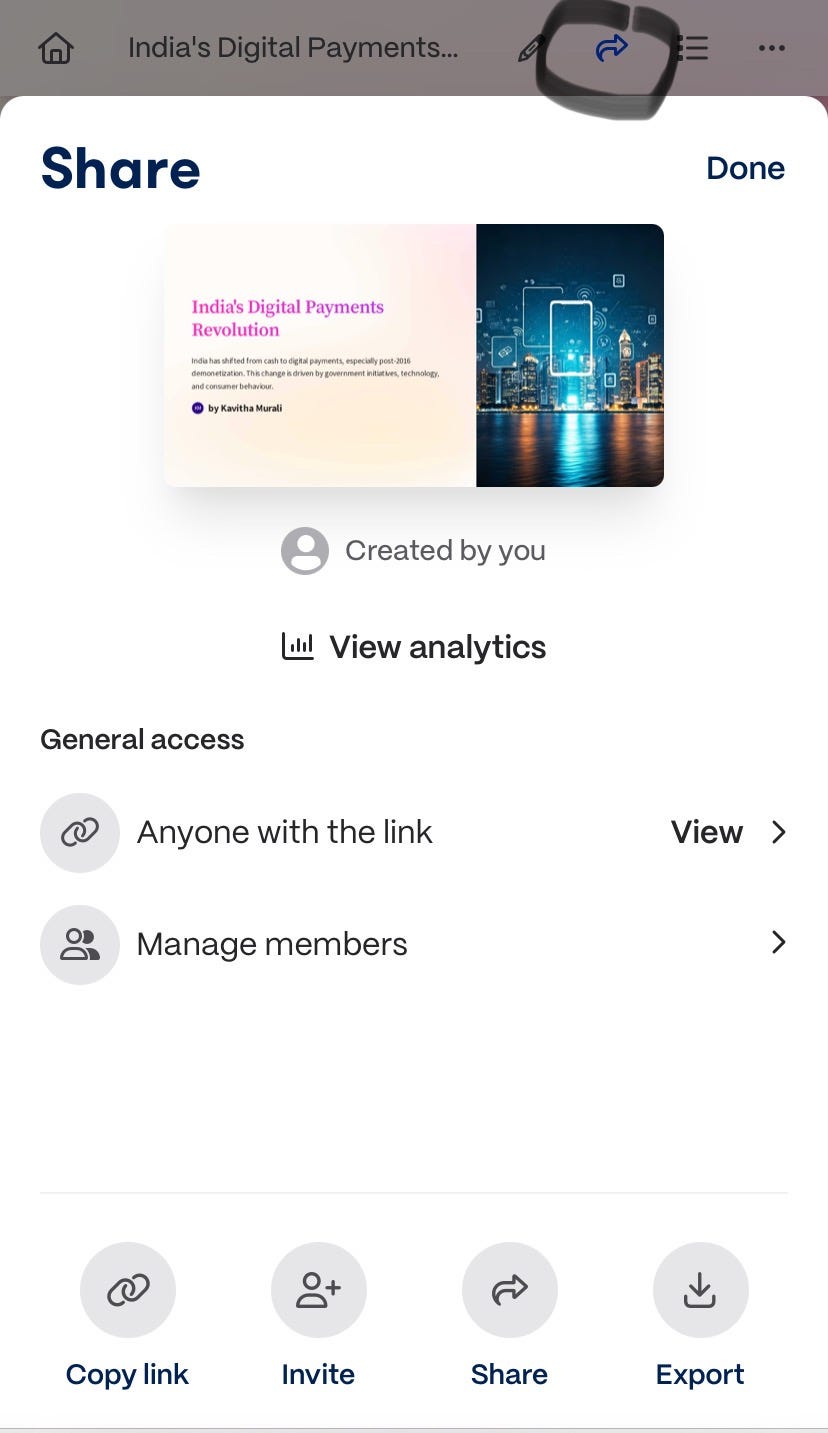
Once you are happy with the output, click the share button to copy link or share directly with your intended audience.
Do try it out and let us know how it worked for you.
Also, would you like to get such supplementary tutorials in the future? Let us know in the comments.
Cheers!